AutoCAD Coordinate LISP Free Download – The Complete Guide
If you’ve ever spent hours manually entering X, Y, and Z coordinates in AutoCAD, you already know how time-consuming and error-prone that process can be. An AutoCAD coordinate LISP routine is the solution every civil engineer and surveyor needs — automating coordinate plotting, reducing errors, and saving hours of repetitive work.
In this guide, we’ll walk you through everything you need to know about AutoCAD coordinate LISP files, how they work, why they matter, and how you can get started with a free AutoCAD coordinate LISP download today.
What Is a LISP Routine in AutoCAD?
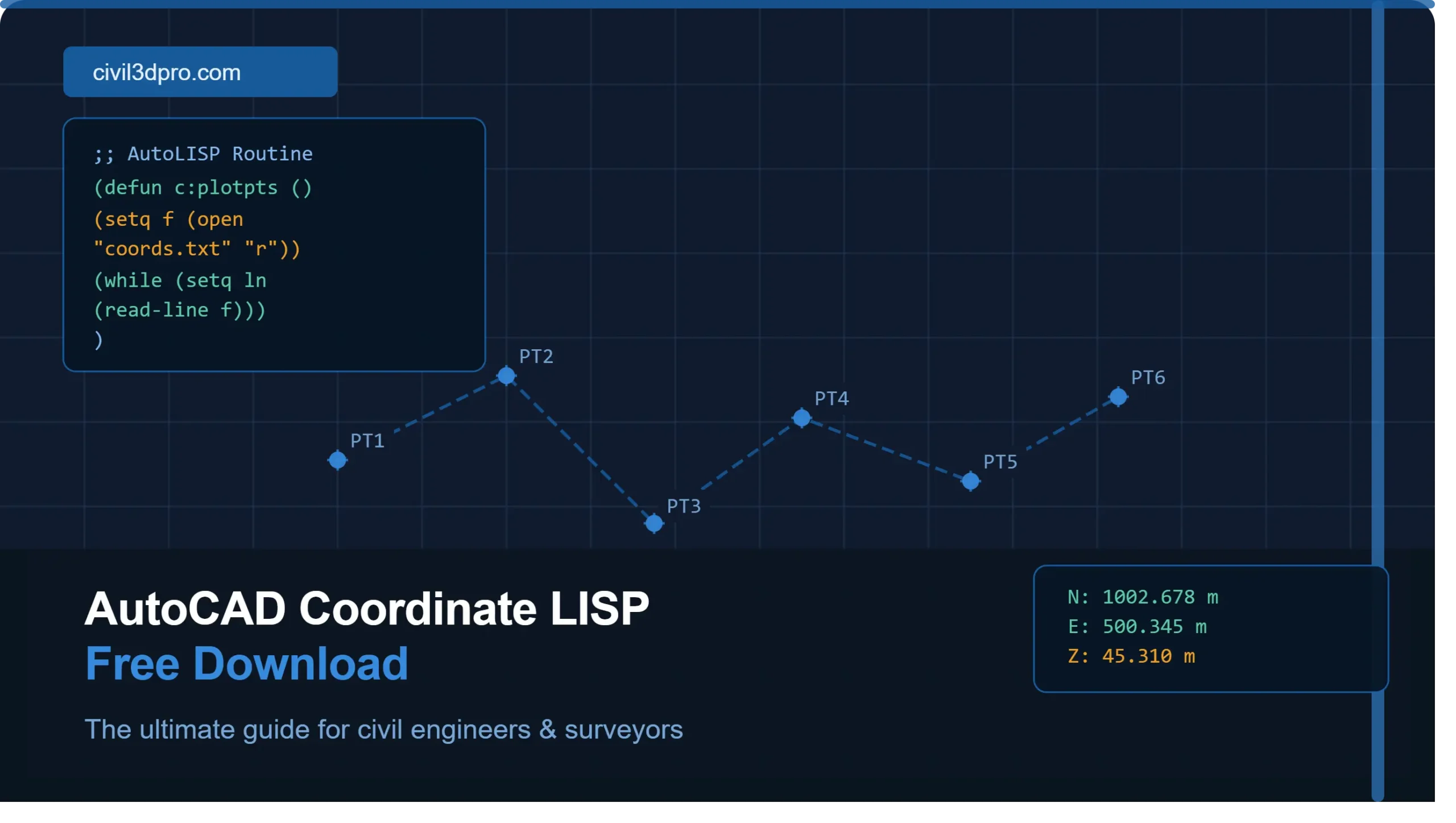
LISP (or AutoLISP) is a built-in scripting language inside AutoCAD that allows users to automate repetitive drafting tasks. A LISP for coordinates in AutoCAD specifically helps you:
- Automatically plot survey points from coordinate data
- Insert point markers with labels (Northing, Easting, Elevation)
- Reduce manual input errors
- Speed up the drawing process significantly
For civil engineers and land surveyors working on large projects, these routines are not a luxury — they’re a necessity.
Why Do Surveyors Need a Coordinate LISP for AutoCAD?
Whether you’re working on a traverse survey, a land development project, or a road alignment, plotting hundreds of survey points manually in AutoCAD is impractical.
Here’s why a free AutoCAD LISP for surveyors makes all the difference:
✅ Speed
A coordinate LISP can plot 500+ points in seconds. What takes an hour manually is done in moments.
✅ Accuracy
Manual coordinate entry leads to typos and transposition errors. A LISP reads from a structured list, eliminating human input mistakes.
✅ Consistency
Every point is plotted with the same style, layer, and label — keeping your drawings clean and professional.
✅ Time = Money
On commercial projects, time saved on drafting directly reduces project costs. That’s the bottom line.
If you’re learning surveying fundamentals alongside your AutoCAD skills, our in-depth Land Surveying resource and Traverse Survey guide are excellent starting points to understand how field data becomes the coordinate input your LISP will process.
How Does an AutoCAD Coordinate LISP Work?
The coordinate LISP routine works by reading a list of points — typically in a format like:
Point No. | Northing | Easting | Elevation | DescriptionOnce loaded into AutoCAD, the routine:
- Reads each coordinate row
- Plots a point or block at that exact location in the drawing space
- Attaches a text label with the point number and/or elevation
- Repeats automatically for every point in the dataset
This is the same workflow professionals use daily when working in Civil 3D — except Civil 3D takes it even further with intelligent surfaces, corridors, and alignments. If you want to level up beyond basic LISP routines, explore our AutoCAD Civil 3D Complete Course to see what’s possible.
AutoCAD Coordinate LISP Free Download — Watch the Tutorial
We’ve created a dedicated video tutorial showing exactly how to use the AutoCAD coordinate LISP routine — from loading the file in AutoCAD to plotting your first set of survey points.
📹 [Video tutorial will be embedded here]
The video covers:
- How to load a
.lspfile in AutoCAD - Preparing your coordinate data correctly
- Running the routine and reviewing output
- Common errors and how to fix them
Using LISP vs. Civil 3D for Coordinate Plotting
Many beginners start with LISP for coordinates in AutoCAD and eventually graduate to Autodesk Civil 3D, which handles coordinate data with far more power and intelligence.
| Feature | AutoCAD LISP | Civil 3D |
|---|---|---|
| Point plotting | ✅ Yes | ✅ Yes (COGO Points) |
| Surface generation | ❌ No | ✅ Yes |
| Alignment design | ❌ No | ✅ Yes |
| Corridor modeling | ❌ No | ✅ Yes |
| Learning curve | Low | Medium-High |
If you’re ready to make that jump, our Civil 3D Pro training portal offers structured learning paths to take you from basic drafting all the way to advanced corridor modeling and surface design.
Who Should Use a Free AutoCAD LISP for Surveyors?
This LISP routine is ideal for:
- Land surveyors who work with total station or GPS data and need to plot points quickly
- Civil engineering students learning survey drafting workflows
- Drafters who regularly receive coordinate files from field teams
- AutoCAD users who haven’t yet transitioned to Civil 3D but want automation now
If you’re a surveyor looking to master the full workflow — from field data to finished design — our PLS Mastery program is designed specifically for professional-level surveyors who want to work smarter.
Tips for Getting the Most Out of Your Coordinate LISP
1. Clean Your Data First
Make sure your coordinate file has no blank rows, inconsistent delimiters, or missing values. The LISP will fail on corrupt data.
2. Set Your Drawing Units
Before running the routine, confirm your AutoCAD drawing units match your coordinate system (meters vs. feet).
3. Use Layers
Set up a dedicated layer for survey points before running the LISP so your drawing stays organized.
4. Back Up Your Drawing
Always save before running any LISP routine on an existing drawing.
5. Combine With Civil 3D
Use the LISP for quick checks and previews, but bring serious project data into Civil 3D for full design capability. Check out our Civil 3D Mega Course (English) if you’re ready to make that move.
Final Thoughts
An AutoCAD coordinate LISP free download is one of the most practical tools you can add to your civil engineering or surveying workflow. It bridges the gap between raw field data and finished drawings — quickly, accurately, and for free.
Whether you’re a student, a practicing surveyor, or a drafting professional, mastering coordinate automation in AutoCAD is a skill that will pay dividends on every project you work on.
Watch AutoCAD Coordinate LISP Free Download guide, and explore our Civil 3D Pro platform for the next level of your learning journey.