
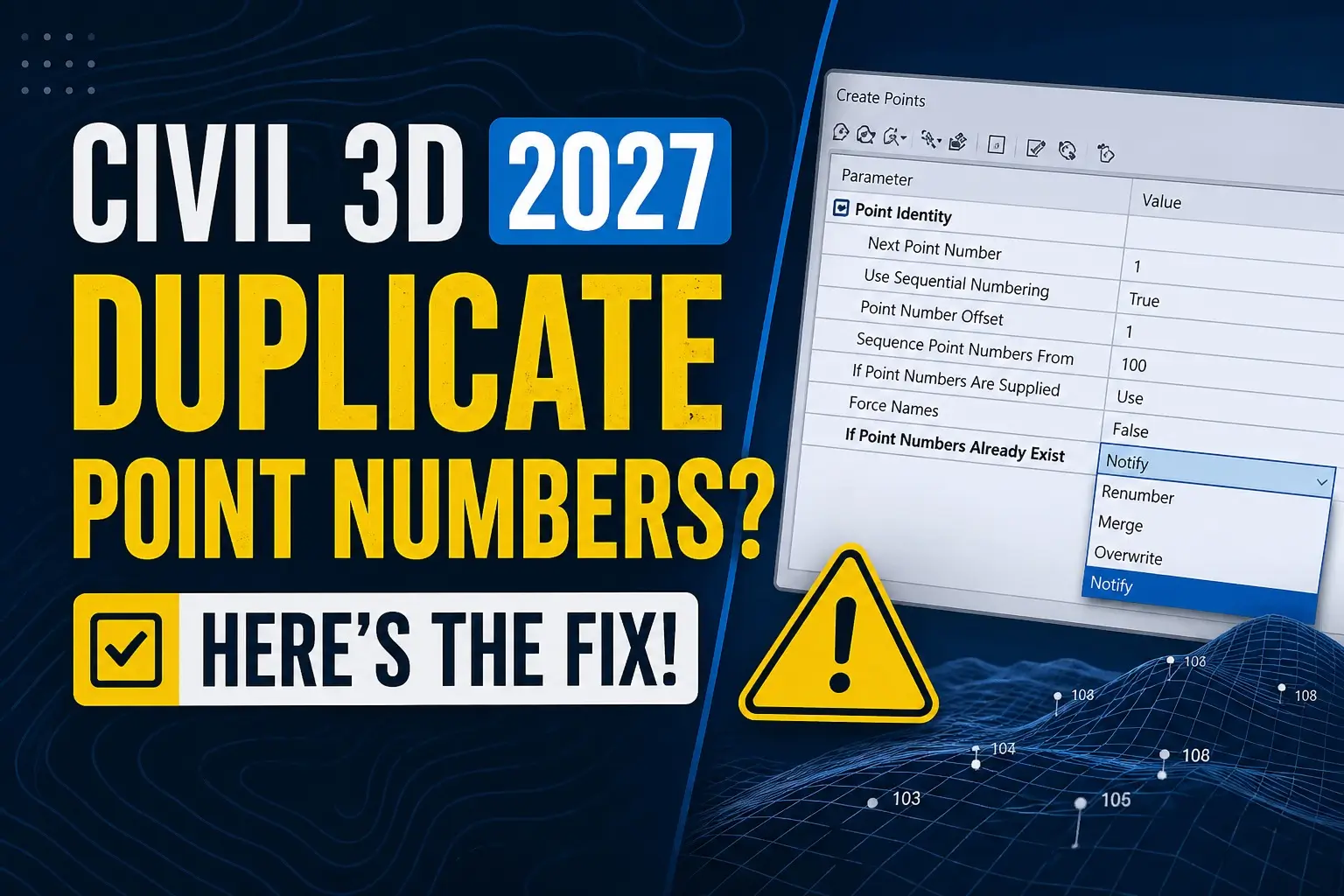
This Civil 3D Mistake Happens to Everyone — Here’s the Fix (Duplicate Point Numbers Guide)
Introduction
If you work with Autodesk Civil 3D, chances are you’ve already run into a frustrating issue: points duplicating or changing numbers after import. This is a very common mistake that surveyors, civil engineers, and CAD designers encounter, especially when importing survey data or working with large point datasets.
The good news is that once you understand how Civil 3D handles duplicate point numbers, fixing this problem becomes simple. In this guide, updated for Civil 3D 2027, we’ll explain what duplicate point numbers are, why they happen, and provide practical solutions to fix them. Whether you are managing survey points, field data, or design points, this guide will help you streamline your workflow and avoid costly mistakes.
What Are Duplicate Point Numbers in Civil 3D?
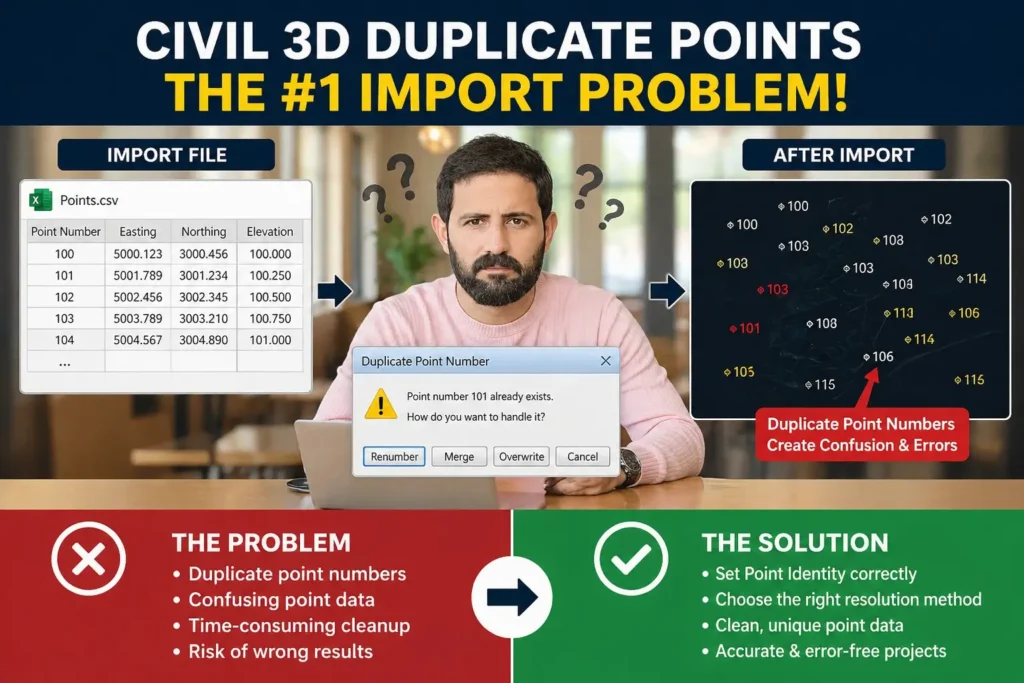
Duplicate point numbers occur when you import a point file (CSV, TXT, or other formats) into your Civil 3D drawing and some of the point numbers already exist in the drawing. Civil 3D then has to decide what to do with those duplicates. If your Point Identity settings are not configured correctly, you may experience problems such as renumbered points, merged data, or overwritten points.
These duplicate points are not a bug—they are a natural consequence of importing data into a system that needs unique identifiers for each point. Understanding Civil 3D’s duplicate point handling options is essential for surveyors, CAD managers, and engineers working with Autodesk Civil 3D.
Why This Mistake Happens to Everyone
Even experienced Civil 3D users encounter this issue. Most users:
- Import points without reviewing the Point Identity settings.
- Assume that points will simply add without conflicts.
- Don’t realize that Civil 3D offers multiple methods to handle duplicates.
By default, Civil 3D may renumber, merge, overwrite, or notify depending on your setup. If these options are not properly configured, you end up with inconsistent or duplicate point numbers, which can compromise survey data and design accuracy.
also check Civil 3D 2027 AI Revolution
Civil 3D 2027: Duplicate Point Handling Methods
In Civil 3D 2027, there are four main ways the software can handle duplicate points when they are detected during import:
1. Renumber
Renumbering assigns a new, unique number to the imported point while keeping existing points unchanged.
Best for: Quickly avoiding conflicts in large datasets. This method ensures that no original point data is lost, and all imported points remain unique.
2. Merge
Merge combines the existing and imported point data. Some properties, such as elevations or descriptions, may be updated based on the imported data.
Best for: Updating survey data where you want to retain existing points while adding new information from the imported dataset.
3. Overwrite
Overwrite replaces the existing point data completely with the imported point data.
Best for: Re-importing corrected datasets. This method is risky if you do not want to lose original point data, so it should be used cautiously.
4. Notify
Notify prompts the user every time a duplicate is found, allowing manual control.
Best for: Critical projects where full control over duplicates is required. Note that this can slow down large imports because each conflict requires user intervention.
Step-by-Step Fix for Duplicate Points
Here’s a recommended workflow to avoid duplicate point issues:
Step 1: Open Point Identity Settings
Navigate to Create Points Toolbar > Point Creation Tools > Point Identity.
Step 2: Configure Your Settings
For optimal results in Civil 3D 2027, set the following:
- If Point Numbers Already Exist: Choose Notify or Renumber depending on your project requirements.
- If Point Numbers Need to Be Assigned: Select Use Next Available Number.
- Enable Sequential Numbering if you need points to follow a specific order.
Step 3: Use Offset Method (Pro Tip)
Civil 3D allows adding an offset value to imported points.
Example:
- Imported point = 100
- Offset = 5000
- New point = 5100
This ensures that all points remain unique and prevents accidental overlaps between survey points and design points.
Best Practices for Civil 3D 2027
Following best practices helps reduce errors and maintain clean datasets:
- Always review Point Identity settings before importing points.
- Use Renumber for large datasets to avoid conflicts automatically.
- Use Notify for critical projects where precision matters.
- Keep backups of original drawings before importing new points.
- Standardize numbering ranges, for example, separate survey points from design points.
These practices save time and reduce the risk of data corruption in Civil 3D projects.
What’s New in Civil 3D 2027?
Civil 3D 2027 includes several improvements for handling duplicate points:
- Faster import processing for large point files.
- More stable merge behavior for updating existing points.
- Improved user interface clarity in the Duplicate Point Dialog.
- Better control over automatic numbering during import.
These updates make working with survey and design points easier and more predictable.
Final Thoughts
Duplicate point numbers in Civil 3D are not a software bug—they are a workflow mistake that almost every Civil 3D user experiences at least once. The solution is simple: configure your Point Identity settings before importing points.
By following the steps outlined in this guide, you can prevent duplicate points, save hours of manual cleanup, and maintain accurate survey and design data. Whether you are managing survey points, field data, or large design projects, these techniques will help you work smarter and more efficiently in Autodesk Civil 3D 2027.



One Comment