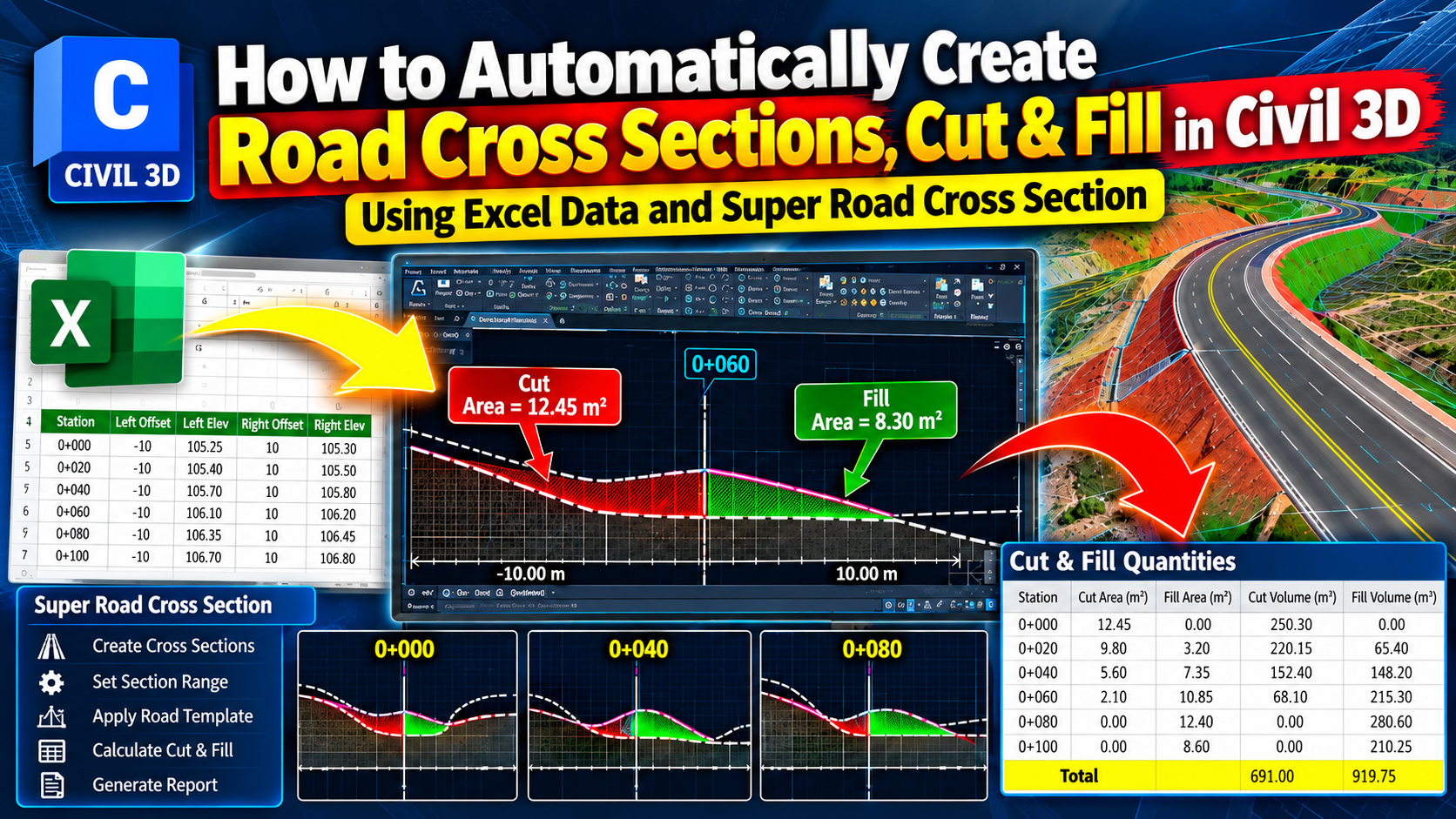
How to Automatically Create Road Cross Sections, Cut & Fill in Civil 3D Using Excel Data and Super Road Cross Section
Creating road cross sections manually in AutoCAD Civil 3D can be time-consuming, especially when working on large road design projects. Engineers often need to prepare multiple cross sections, analyze existing and proposed ground levels, calculate cut and fill areas, and determine earthwork volumes.
In this tutorial, we will explore how to automatically create road cross sections and calculate Cut, Fill, Area, and Volume quantities in AutoCAD Civil 3D using Excel data and Super Road Cross Section.
This workflow can help civil engineers, road designers, surveyors, and quantity estimators reduce repetitive drafting work and improve productivity.
What You Will Learn
- Prepare road cross-section data in Microsoft Excel.
- Organize station values, offsets, and elevation information.
- Use Super Road Cross Section to automate cross-section creation.
- Generate multiple road cross sections efficiently.
- Analyze existing ground and proposed road levels.
- Calculate cut and fill areas at different road stations.
- Determine earthwork volumes along a road alignment.
- Review cross-section drawings and quantity reports.
1. Prepare Road Cross-Section Data in Excel
The first step is to organize the required road cross-section information in Microsoft Excel.
Depending on the tool’s requirements, the data may include station values, offsets, existing ground elevations, and proposed road levels.
Ensure that your Excel data is correctly organized and follows the format required by the Super Road Cross Section tool.
2. Open AutoCAD Civil 3D
Open your road design project in AutoCAD Civil 3D.
Ensure that the required alignment, existing ground surface, and relevant design information are available before proceeding.
3. Automatically Create Road Cross Sections
Using the Super Road Cross Section workflow, you can automate the creation of multiple road cross sections based on your project data.
Instead of drafting each cross section individually, you can process multiple stations more efficiently. This approach is particularly useful for long road alignments that require numerous cross sections for design review and construction documentation.
4. Calculate Cut and Fill Areas
After creating the cross sections, analyze the existing ground and proposed road levels to identify excavation and embankment requirements.
- Cut Area: The area where the existing ground is above the proposed design level and excavation is required.
- Fill Area: The area where the proposed design level is above the existing ground and additional material is required.
Calculating these areas at individual stations helps engineers understand earthwork requirements along the road alignment.
5. Calculate Cut and Fill Volumes
After determining the cut and fill areas, calculate the corresponding earthwork volumes along the road alignment.
Volume calculations use cross-sectional areas at successive stations and the distance between them. Depending on the calculation method, the average end area method or another appropriate method may be used.
The resulting quantities can support earthwork estimation, construction planning, and project documentation.
6. Generate Cross-Section Drawings and Quantity Reports
Once the calculations are complete, review the generated cross sections and quantity results.
A typical earthwork report may include:
- Station numbers
- Cut area
- Fill area
- Cut volume
- Fill volume
- Total excavation quantities
- Total embankment quantities
The exact report format and available outputs depend on the tool and its configuration.
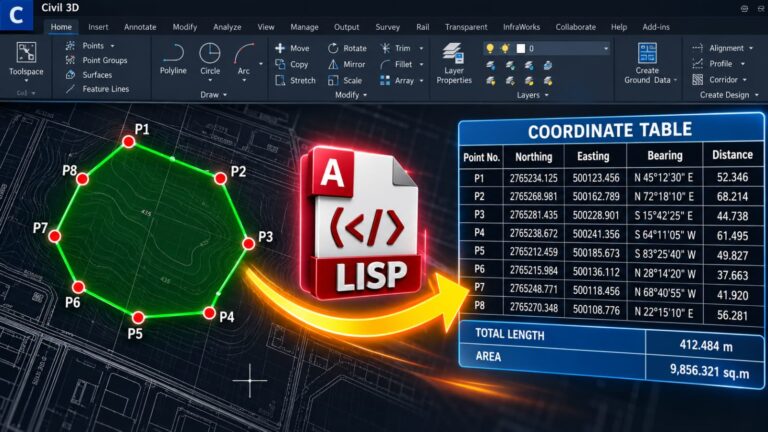
Download Super Road Cross Section LISP
Download the Super Road Cross Section LISP tool using the link below.
LISP Download Link:
LISP Download
Benefits of Automating Road Cross Sections
Save Time: Reduce repetitive drafting and calculation tasks.
Improve Productivity: Process multiple road stations more efficiently.
Simplify Earthwork Estimation: Calculate cut and fill areas and volumes to support project planning.
Organize Project Documentation: Maintain structured cross-section drawings and quantity information.
Improve Workflow Efficiency: Combine Excel data with Civil 3D tools to streamline road design tasks.
Conclusion
Automatically creating road cross sections and calculating cut-and-fill quantities can significantly improve productivity in civil engineering projects.
By combining Excel data, AutoCAD Civil 3D, and the Super Road Cross Section workflow, engineers can streamline cross-section preparation, analyze excavation and embankment requirements, and organize earthwork quantities more efficiently.
Explore more practical engineering tutorials and tools with Civil Designs.