How to Automatically Generate Linework Using LISP in Civil 3D
Creating linework from survey points manually in AutoCAD Civil 3D can be a time-consuming task, especially when working with large topographic surveys, road projects, and infrastructure drawings.
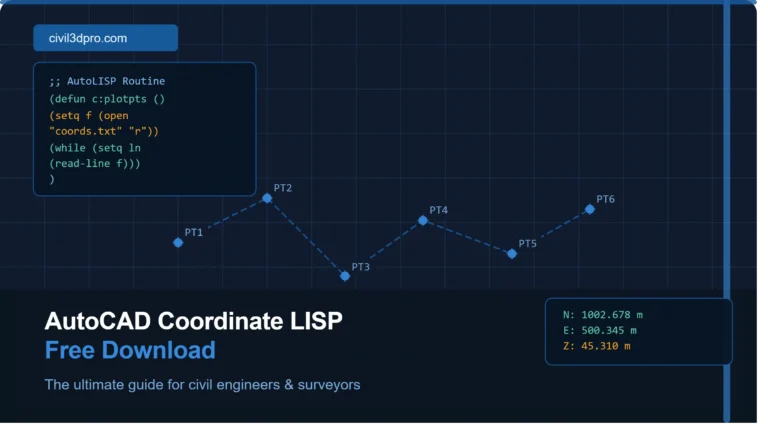
Connecting survey points in the correct sequence requires careful selection and repetitive drafting operations. However, using custom LISP automation, you can simplify this process and generate linework automatically based on point numbers or point descriptions.
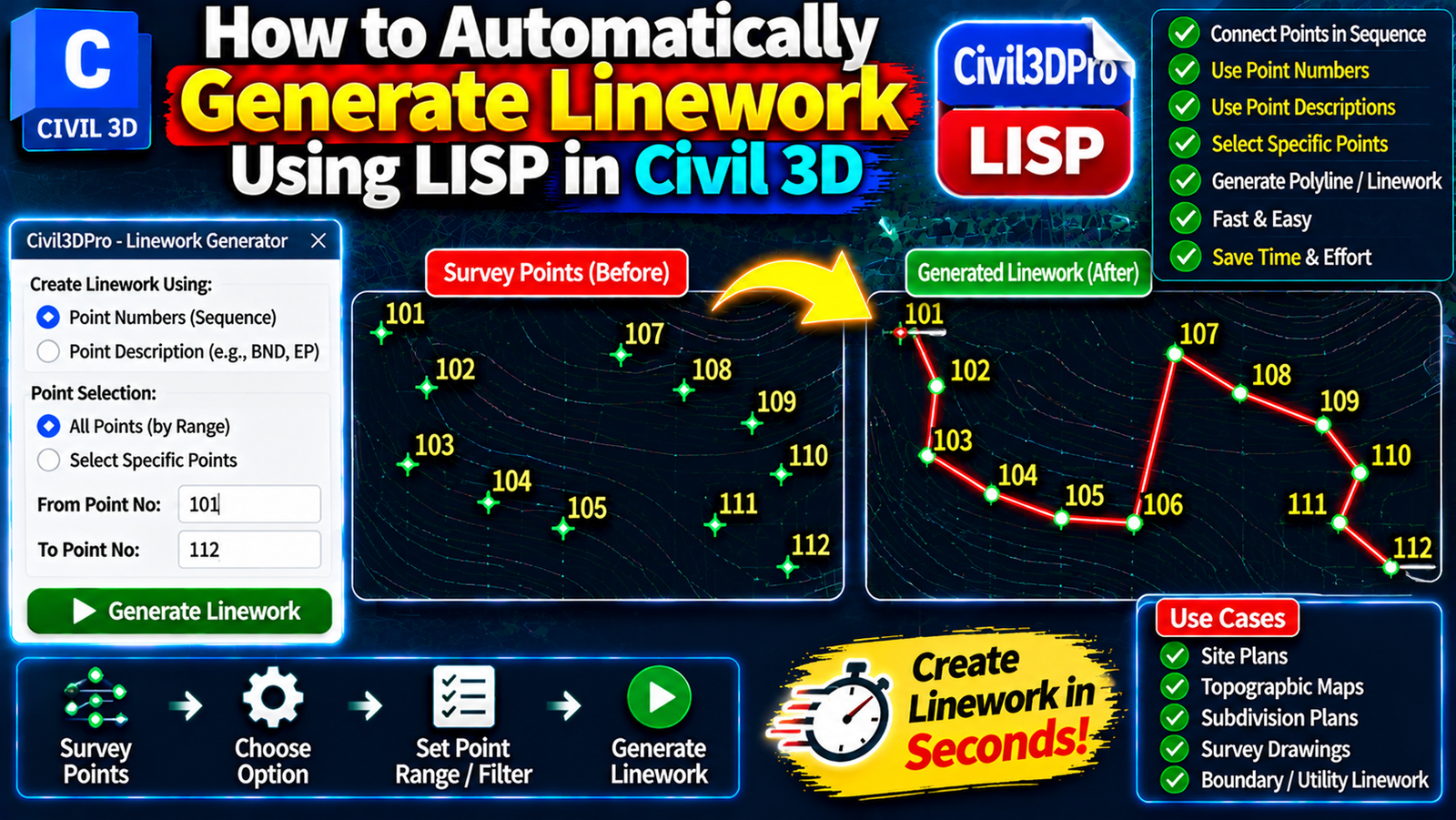
In this tutorial, we will explore how to automatically generate linework in AutoCAD Civil 3D using Civil3DPro LISP. You will learn how to connect survey points in sequence, select specific point numbers, and generate linework based on point descriptions in just a few seconds.
What You Will Learn
- How to generate linework automatically using Civil3DPro LISP.
- How to connect survey points using point numbers.
- How to generate linework in sequential point order.
- How to create linework using point descriptions.
- How to select specific survey points.
- How to connect multiple survey points automatically.
- How to generate polylines from survey point data.
- How to reduce manual drafting work in Civil 3D.
1. Open AutoCAD Civil 3D
First, open your survey or topographic drawing in AutoCAD Civil 3D.
Make sure your survey points or COGO points are available in the drawing. These points will serve as the reference for generating the required linework.
Check that the point numbers, descriptions, and locations are correct before proceeding.
2. Load Civil3DPro LISP
Load the Civil3DPro LISP tool into your AutoCAD Civil 3D environment.
Once the LISP file is loaded successfully, run the corresponding linework generation command.
The tool provides an automated workflow for connecting survey points and generating linework based on the available selection options.
3. Generate Linework Using Point Numbers
One of the useful features of Civil3DPro LISP is the ability to generate linework using point numbers.
Instead of manually selecting individual survey points, you can specify the required point number sequence.
For example, if your survey points are numbered from 101 to 110, you can use the point number option to connect the points in the required sequence.
The tool processes the selected points and generates the corresponding linework automatically.
This method is particularly useful when working with survey data that follows a predefined point numbering system.
4. Generate Linework Using Point Descriptions
Another useful option is generating linework based on point descriptions.
In survey projects, different point descriptions are commonly used to identify specific features, such as:
- BND – Boundary Points
- EP – Edge of Pavement
- CL – Centerline
- FNC – Fence
- UTIL – Utility Features
Using the point description option, you can identify and connect points associated with specific survey features.
This makes it easier to generate organized linework from large survey datasets without manually selecting every point.
5. Select Specific Point Numbers
Sometimes you may not want to connect all the available survey points.
In such situations, selecting specific point numbers can help you generate linework only for the required points.
Specify the desired point numbers or selection range using the available tool options.
The LISP routine then processes the selected points and generates the corresponding linework.
6. Automatically Create Polylines
After selecting the required points using point numbers or descriptions, Civil3DPro LISP generates the corresponding linework.
The resulting polylines can be used for different engineering and surveying applications.
For example:
- Road centerlines
- Property boundaries
- Existing pavement edges
- Fence lines
- Utility routes
- Topographic feature lines
Always review the generated geometry to ensure that the points are connected in the correct sequence.
7. Review the Generated Linework
Once the linework has been generated, inspect the resulting polylines in your Civil 3D drawing.
Check the point connections, geometry, and feature representation.
If necessary, make adjustments to ensure that the generated linework matches the original survey information.
Download Civil3DPro Linework Generator LISP
Download the Civil3DPro LISP tool using the link below.
Civil3DPro LISP Download Link:
Benefits of Using Civil3DPro LISP
Save Time: Generate linework automatically instead of connecting survey points manually.
Improve Productivity: Process multiple survey points more efficiently.
Point Number Automation: Connect points based on their sequential numbering.
Description-Based Linework: Generate linework using specific survey point descriptions.
Flexible Point Selection: Select the required points instead of processing the entire drawing.
Reduce Repetitive Work: Simplify common survey drafting operations in AutoCAD Civil 3D.
Conclusion
Automatically generating linework from survey points can significantly improve productivity in AutoCAD Civil 3D.
With Civil3DPro LISP, you can connect survey points using point numbers or descriptions, select specific points, and generate the required linework in seconds.
Whether you are preparing topographic surveys, road design drawings, property boundaries, or infrastructure plans, this automation workflow can help reduce manual drafting work and make survey data processing more efficient.
Explore more practical AutoCAD Civil 3D tutorials, custom LISP tools, and engineering automation techniques with Civil Designs.