How to Create Custom LISP in AutoCAD Civil 3D Using AI | Generate & Fix Errors
Creating custom LISP routines in AutoCAD Civil 3D can help automate repetitive drafting tasks, improve productivity, and simplify complex engineering workflows. However, writing AutoLISP code, understanding programming errors, and debugging custom commands can be challenging, especially for users who are new to LISP programming.
In this tutorial, you will learn how to use Artificial Intelligence (AI) to create custom LISP tools for AutoCAD Civil 3D, generate AutoLISP code from simple instructions, test your commands, and fix errors step by step.
Whether you want to automate point creation, extract coordinate data, generate road alignment information, or develop custom CAD tools, AI can help you build and improve your own AutoCAD LISP routines.
What Is AutoLISP in AutoCAD Civil 3D?
AutoLISP is a programming language used to customize and automate tasks in AutoCAD and compatible CAD environments.
With custom AutoLISP routines, users can create commands that perform repetitive operations automatically instead of completing every step manually.
In AutoCAD Civil 3D, LISP routines can be useful for tasks such as:
- Automating repetitive drawing operations.
- Creating custom CAD commands.
- Processing text and drawing objects.
- Generating coordinate information.
- Automating selected point-related workflows.
- Creating alignment and offset geometry.
- Extracting information from CAD drawings.
- Improving drafting and documentation workflows.
The exact capabilities depend on the code, the objects being processed, and the available AutoCAD Civil 3D APIs and commands.
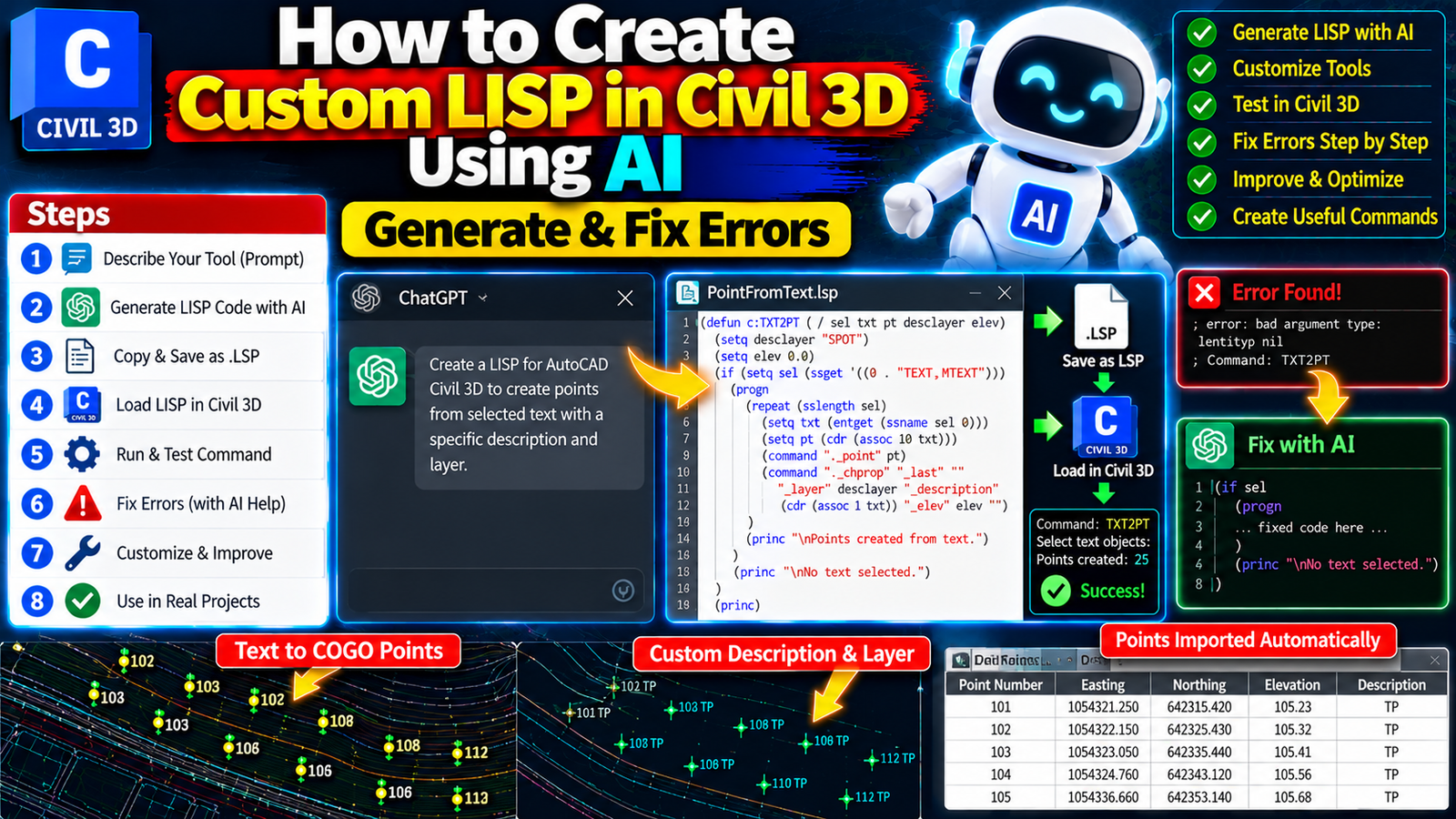
1. How to Create a Custom LISP Using AI
The first step is to explain your required automation task clearly to an AI assistant.
You do not need to be an expert programmer to begin. Describe what you want the LISP routine to do, which objects it should process, what inputs it needs, and what output you expect.
For example, you could request a custom LISP routine that selects text objects, reads their values, and performs a specified drawing operation.
A good prompt should explain:
- The purpose of the LISP routine.
- The command name you want to use.
- The objects the routine should select.
- The required inputs and settings.
- The expected output.
- How the routine should handle invalid selections or missing data.
- Which AutoCAD or Civil 3D version you are using.
Providing these details helps AI generate code that better matches your requirements.
2. Generate AutoLISP Code with AI
After defining your requirements, ask AI to generate the AutoLISP code.
AI can help create a new LISP routine, modify an existing program, explain unfamiliar code, and suggest solutions for programming errors.
For example, you can ask AI to create a custom command that selects specific text objects and uses their values to perform a particular operation.
Once the code has been generated, review it carefully before using it in your project.
Important: AI-generated AutoLISP code may contain syntax errors, unsupported functions, or incorrect assumptions about Civil 3D objects. Always test the code before using it on important project drawings.
3. Save Your Custom LISP File
After reviewing the generated code, save it as a .lsp file.
You can use a suitable text editor, such as Windows Notepad or Visual Studio Code, to save and edit your AutoLISP source code.
Make sure the file is saved with the .lsp extension rather than accidentally being saved as a .txt file.
Use a clear filename that describes the function of your custom tool. For example, a point-processing routine could be saved as CustomPointTool.lsp.
Keeping your LISP files organized makes it easier to maintain, update, and reuse your custom CAD automation tools.
4. Load the LISP into AutoCAD Civil 3D
Open AutoCAD Civil 3D and load your custom LISP file using the APPLOAD command.
Select the saved .lsp file and load it into the current AutoCAD session.
If the file loads successfully, run the custom command defined in the code.
Depending on your security settings, trusted locations and application security restrictions may affect whether a LISP file can be loaded.
If the command does not run, check the command name, file contents, and loading messages before proceeding.
5. Test Your Custom LISP Command
Testing is an essential part of developing a reliable AutoLISP routine.
Before using the tool on a real engineering project, open a test drawing or create a copy of your existing drawing.
Test the routine with different types of input to determine whether it behaves as expected.
For example, if the routine processes text objects, test it with:
- A valid text selection.
- Multiple text objects.
- No selected objects.
- Unexpected text values.
- Objects on different layers.
Check whether the command produces the correct results and handles invalid input without damaging the drawing.
6. How to Fix AutoLISP Errors Using AI
One of the most useful applications of AI in AutoLISP programming is troubleshooting code errors.
Sometimes a LISP routine loads successfully but fails when you run its command. In other cases, the routine may produce incorrect results or stop unexpectedly.
Common AutoLISP problems include:
- Syntax errors and unmatched parentheses.
- Undefined functions or variables.
- Incorrect object selection filters.
- Invalid entity data.
- Unexpected
nilvalues. - Incorrect command arguments.
- Problems processing TEXT or MTEXT objects.
- Errors when working with Civil 3D objects.
When an error occurs, copy the complete command-line error message and provide it to AI along with the relevant code.
Ask AI to identify the cause, correct the problem, and return the complete revised LISP file.
Avoid sharing only the error message when the surrounding code is necessary to understand the problem.
7. Debug and Improve Your LISP Code
Fixing an error is only one part of developing a reliable custom tool.
After correcting the code, run the command again and verify that the original problem has been resolved.
If the routine still fails, provide AI with the new error message and explain what happened during testing.
You can also ask AI to improve the routine by adding:
- Clear command-line messages.
- Input validation.
- Error handling.
- Selection filters.
- User-defined settings.
- More efficient processing.
- Support for additional input conditions.
Make one change at a time and retest the routine. This makes it easier to identify the source of new problems.
8. Create Custom Civil 3D Automation Tools
Once you understand the process of generating, testing, and debugging AutoLISP code, you can apply the same workflow to other CAD automation tasks.
For example, you could develop custom LISP routines for:
Coordinate Processing: Extract or organize coordinate information from supported drawing objects.
Point Automation: Automate selected point-related tasks where the required object types and Civil 3D commands are supported.
Road Alignment: Create or process alignment-related geometry and associated information.
Offset Generation: Automate the creation of centerlines and offset geometry.
Text Processing: Read, filter, or modify TEXT and MTEXT objects.
Drawing Automation: Reduce repetitive drafting tasks by creating custom commands tailored to your workflow.
Some Civil 3D operations require specialized APIs or direct interaction with Civil 3D objects. In these cases, a basic AutoLISP routine may need additional programming or a different automation approach.
9. Best Practices for AI-Assisted AutoLISP Programming
Follow these recommendations when creating custom LISP tools with AI:
- Clearly define the required functionality before generating code.
- Specify your AutoCAD Civil 3D version.
- Use descriptive command and variable names.
- Ask AI to explain important parts of the code.
- Save a backup before modifying an existing LISP routine.
- Test new code in a separate drawing.
- Provide complete error messages when requesting debugging help.
- Verify the results rather than assuming the code is correct.
- Keep a working copy of previously tested versions.
- Avoid running untrusted code on important project files.
Following these practices can help you develop more reliable custom AutoLISP tools and reduce unnecessary troubleshooting.
Benefits of Using AI to Create Custom LISP Tools
Faster Development: Generate an initial version of a custom LISP routine from clearly defined requirements.
Easier Debugging: Use AI to investigate syntax errors, incorrect logic, and unexpected program behavior.
Customized Automation: Develop tools that address your specific AutoCAD Civil 3D workflow.
Improved Productivity: Reduce repetitive drafting and data-processing tasks.
Better Understanding: Learn how AutoLISP code works by asking AI to explain functions and programming concepts.
Continuous Improvement: Refine existing LISP routines as your project requirements change.
Conclusion
AI-assisted AutoLISP programming provides a practical way to develop custom automation tools for AutoCAD Civil 3D. By clearly defining your requirements, generating code with AI, saving the LISP file, testing commands, and fixing errors step by step, you can build tools tailored to your engineering workflow.
From point processing and coordinate extraction to road alignment automation and repetitive drafting operations, custom AutoLISP routines can help simplify many everyday CAD tasks.
Remember that AI-generated code should always be reviewed and tested before being used on real projects. Reliable automation requires correct programming logic, appropriate handling of Civil 3D objects, and verification of the final results.
Explore more AutoCAD Civil 3D tutorials, custom LISP development techniques, and practical engineering automation workflows with Civil Designs.