Superelevation Curve Manager in Civil 3D 2027: User-Defined Curves & Advanced Superelevation Control
Modern roadway design is rarely “standard.” Real projects demand adjustments that go beyond automatic calculations. In Autodesk Civil 3D 2027, the Superelevation Curve Manager gives engineers deeper control over how superelevation is applied across alignments, tangents, and complex geometric conditions.
This tool is especially important when default curve-based logic does not match real-world design standards or project constraints.
For broader learning and structured practice, you can explore the Civil 3D training ecosystem here:
Civil 3D Training Hub
Why Superelevation Needs More Control Than Default Settings
Standard superelevation tools in Civil 3D calculate cross slopes based only on horizontal geometry. That works for simple alignments, but real infrastructure projects often break those assumptions.
In practice, engineers frequently face conditions like:
- Superelevation starting before the curve begins
- Transition zones that must be extended or shortened
- Tangent sections requiring intentional slope control
- Roundabouts needing custom rotation behavior
- Design standards that differ from default templates
This is where user-defined control becomes essential, especially in highways and urban corridor design.
For advanced corridor and roadway workflows, this resource is useful:
Civil 3D Corridor Modeling Guides
What the Superelevation Curve Manager Actually Does
The Superelevation Curve Manager is a dedicated environment inside Civil 3D used to define, modify, and control superelevation regions along an alignment.
Instead of relying only on automatic geometry detection, it allows engineers to manually define how roadway banking behaves.
With this tool, you can:
- Create custom superelevation regions
- Define user-controlled curves on tangents or transitions
- Override default curve detection behavior
- Assign design speed and curvature manually
- Adjust transition-in and transition-out zones
- Control station-based superelevation logic
- Fine-tune cross slope behavior for lanes and shoulders
This level of control is critical for transportation infrastructure, especially highways, intersections, and complex corridor systems.
How to Access the Superelevation Curve Manager
Opening the tool is straightforward inside Civil 3D 2027.
Steps:
- Select your alignment
- Go to the Alignment tab
- Open Modify panel → Superelevation → Calculate/Edit Superelevation
- If superelevation is not yet defined, Civil 3D prompts you
- Choose Open Superelevation Curve Manager
Once opened, you’ll see all existing superelevation regions tied to the alignment.
For structured exercises related to superelevation workflows, refer here:
Civil 3D Superelevation Exercises (Chapter 13)
Understanding User-Defined Curves in Civil 3D
User-defined curves are one of the most powerful features inside the Curve Manager.
They allow engineers to override automatic geometry-based superelevation rules and define custom behavior.
Why they matter:
In real projects, geometry alone is not enough. For example:
- A curve may require early banking for safety
- A tangent section may need controlled slope transition
- Roundabouts often require non-standard rotation logic
- Urban roads may follow design exceptions
User-defined curves solve these problems by letting you explicitly define how superelevation should behave.
Creating a User-Defined Curve
You can create a custom superelevation curve directly inside the manager.
Workflow:
- Open Superelevation Curve Manager
- Select Create User-Defined Curve
- Pick a tangent or alignment segment
- Assign a curve name
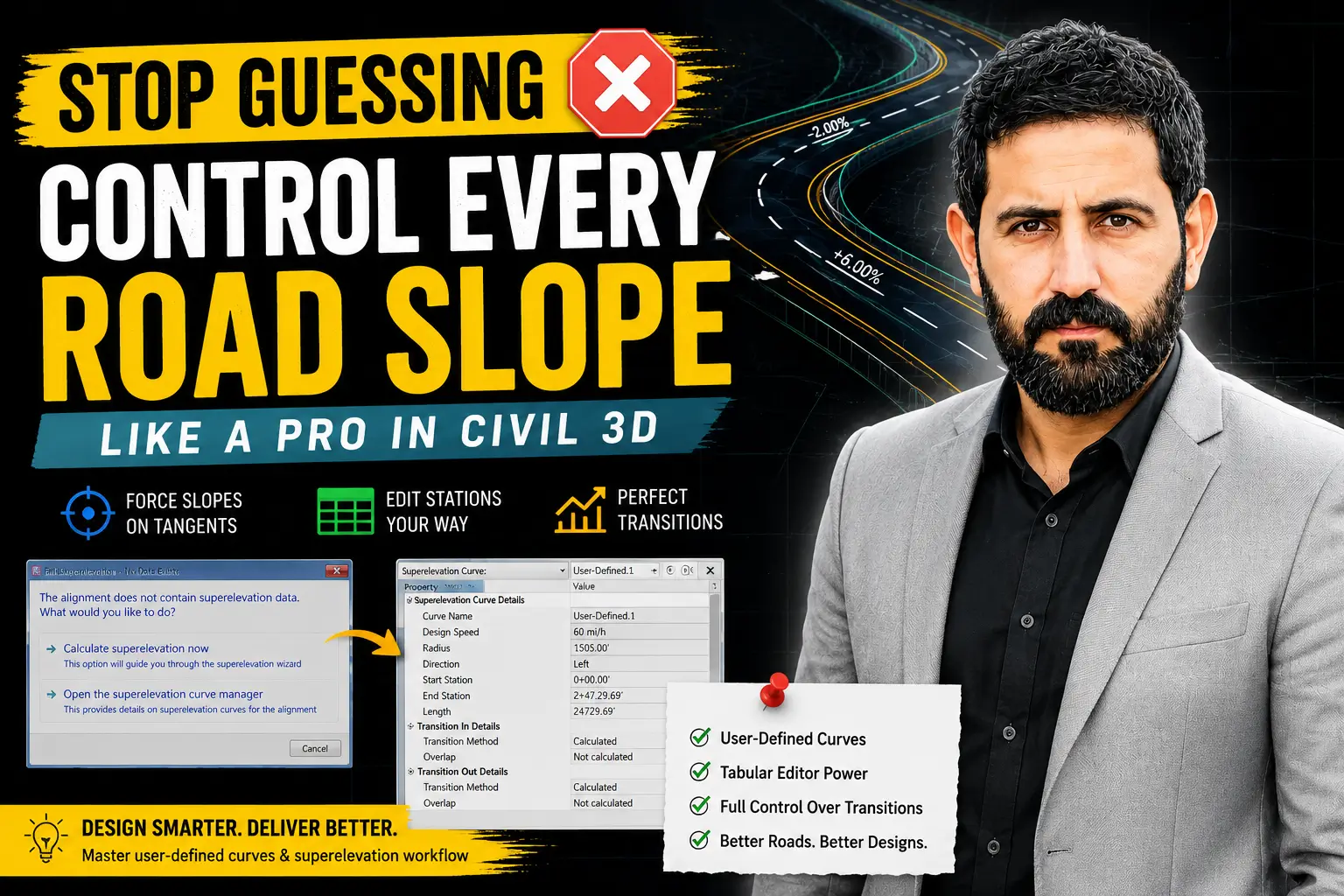
- Define key parameters:
- Design speed
- Radius
- Direction (left/right)
- Start station
- End station
Once created, Civil 3D treats it like a real geometric curve for superelevation calculation purposes.
Key Curve Properties You Must Understand
Each user-defined curve is driven by critical parameters that directly affect roadway behavior.
Design Speed
Controls superelevation rate and transition behavior.
Radius
Defines curvature intensity and affects banking calculation.
Direction
Determines whether the road rotates left or right.
Start & End Stations
Control where superelevation begins and ends.
Length
Represents total region coverage.
Incorrect values here can lead to inconsistent corridor behavior, so validation is essential.
Managing Transition Zones Properly
Transition control is where real design accuracy is achieved.
The Curve Manager allows you to manage three key zones:
Transition In
Where roadway begins rotating from normal crown.
Full Superelevation
Where maximum banking is achieved.
Transition Out
Where roadway returns to standard cross slope.
These transitions directly impact:
- Driver comfort
- Drainage behavior
- Safety compliance
- Construction accuracy
For practical corridor refinement workflows, you can also reference:
Civil 3D Chapter Exercises Collection
Refining Superelevation Using the Tabular Editor
After defining curves, Civil 3D provides another powerful tool: the Superelevation Tabular Editor.
This allows detailed editing of:
- Station values
- Lane slopes
- Shoulder slopes
- Transition lengths
- Runoff and runout locations
- Custom adjustments to cross slope behavior
It gives spreadsheet-like control inside Civil 3D, making it easier to fine-tune complex roadway sections.
For structured learning pathways, explore:
Civil 3D Complete Course
Key Benefits of the Superelevation Curve Manager
Using this tool significantly improves design quality and workflow speed.
1. Full Design Flexibility
Create superelevation anywhere, not just on curves.
2. Higher Accuracy
Control stations and transitions precisely.
3. Faster Editing Workflow
Avoid rebuilding alignments for small changes.
4. Better Standards Compliance
Match DOT and local design requirements more easily.
5. Improved Corridor Modeling
Generate smoother, more realistic road surfaces.
Best Practices for Civil 3D 2027 Users
To avoid errors and improve performance:
- Always verify design speed before creating curves
- Double-check curve direction (left/right)
- Keep stationing consistent and logical
- Review transitions after every modification
- Use Tabular Editor for fine adjustments
- Rebuild corridors after major changes
- Maintain backups before editing superelevation data
Following these practices reduces design rework and improves model reliability.
You can also explore additional tools and resources here:
Civil 3D Tools & Resources
Final Thoughts
The Superelevation Curve Manager in Autodesk Civil 3D 2027 is essential for engineers who need precise control over roadway banking and transitions.
When combined with user-defined curves and the Tabular Editor, it becomes a complete control system for superelevation design across highways, urban roads, subdivisions, and complex transportation corridors.
Mastering this workflow leads to:
- Fewer design errors
- Faster project delivery
- More accurate corridor models
- Better compliance with engineering standards
For professionals working in roadway and infrastructure design, this tool is not optional anymore—it is part of an efficient, modern Civil 3D workflow.